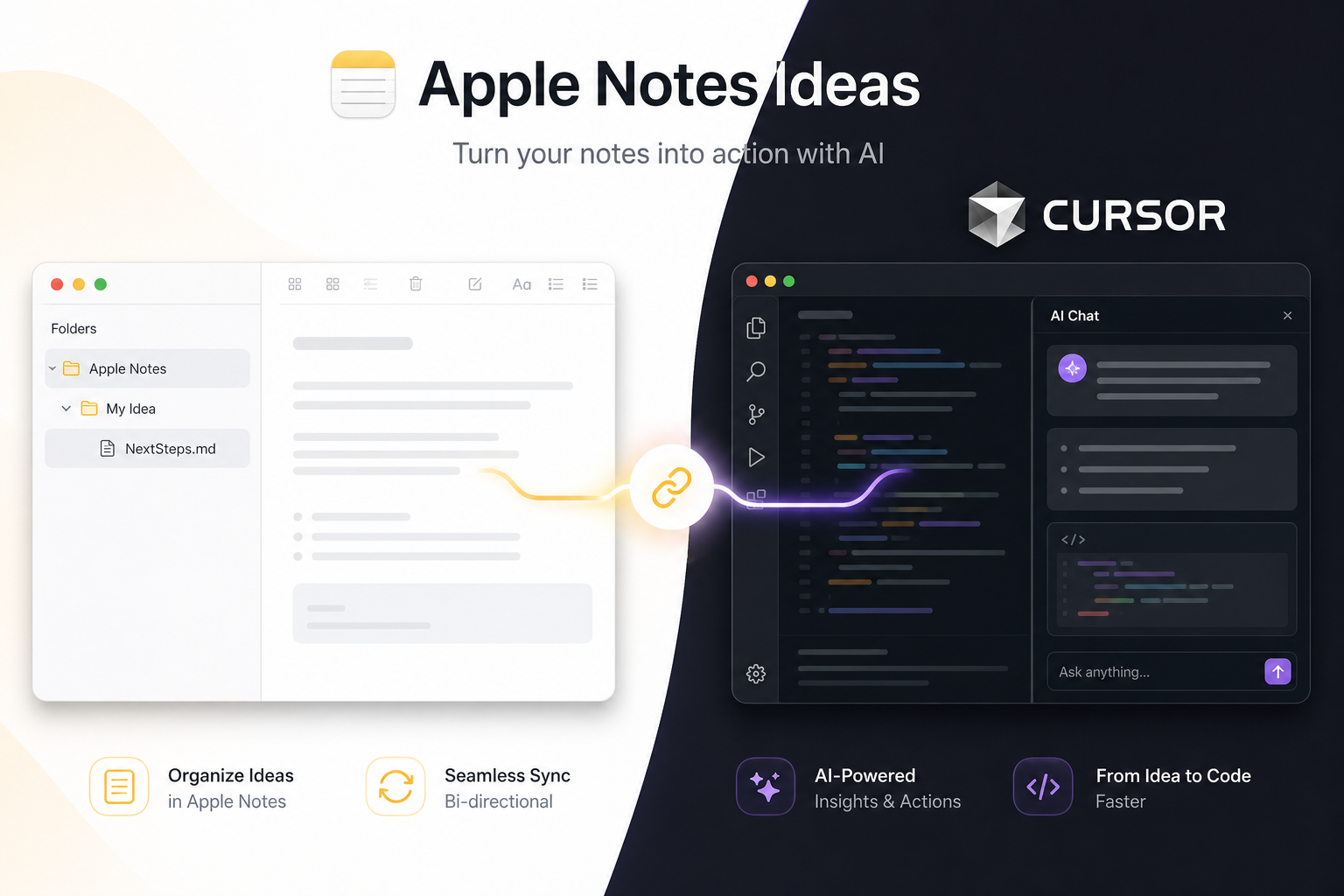
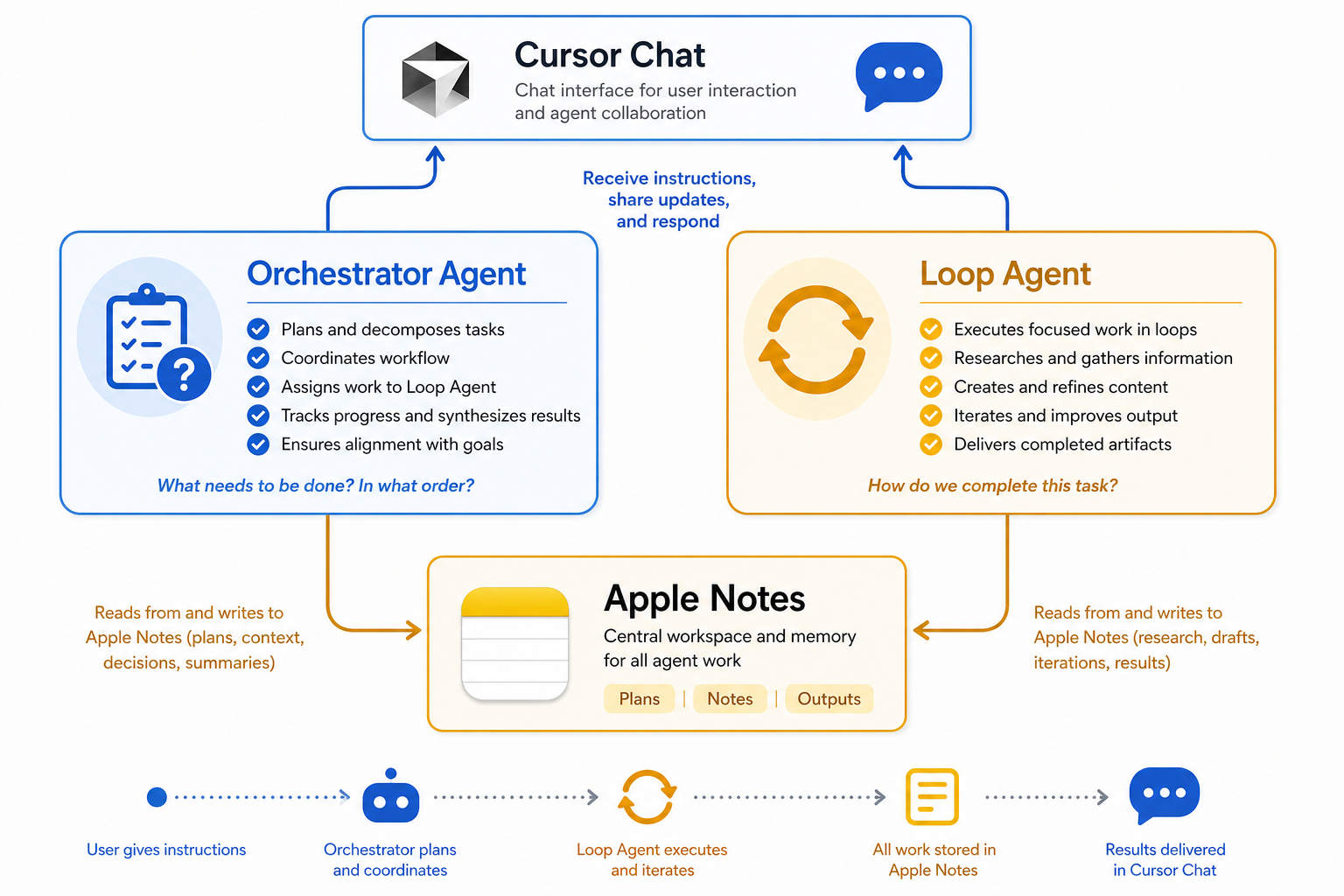
Connect your ideas in Apple Notes to Cursor's AI. Structured folders,
orchestrator plans (NextSteps.md), and agent loops β with a
guided setup app that configures everything for you.
~/.cursor/mcp.json
Before you start
Apple Notes and Automation permissions are macOS-only.
iCloud or βOn My Macβ account with Notes.app installed.
Required for the MCP server. The setup app checks this for you.
Any recent Cursor build with MCP support (Settings β MCP).
Step-by-step
The easiest path for end users is the Apple Notes Ideas.app β a double-click setup guide that configures Cursor and Apple Notes automatically.
git clone https://github.com/adamroszyk/apple-notes-ideas-mcp.git
cd apple-notes-ideas-mcp
npm install
npm run build:macos-app
cp -R "build/Apple Notes Ideas.app" /Applications/
open "/Applications/Apple Notes Ideas.app"
npx apple-notes-ideas-mcp setup --gui # native macOS dialogs
npx apple-notes-ideas-mcp setup # terminal wizard
/Applications/Apple Notes Ideas.app/Contents/MacOS/mcp-server.
Setup writes your Cursor config automatically β no manual JSON editing.
Guided onboarding
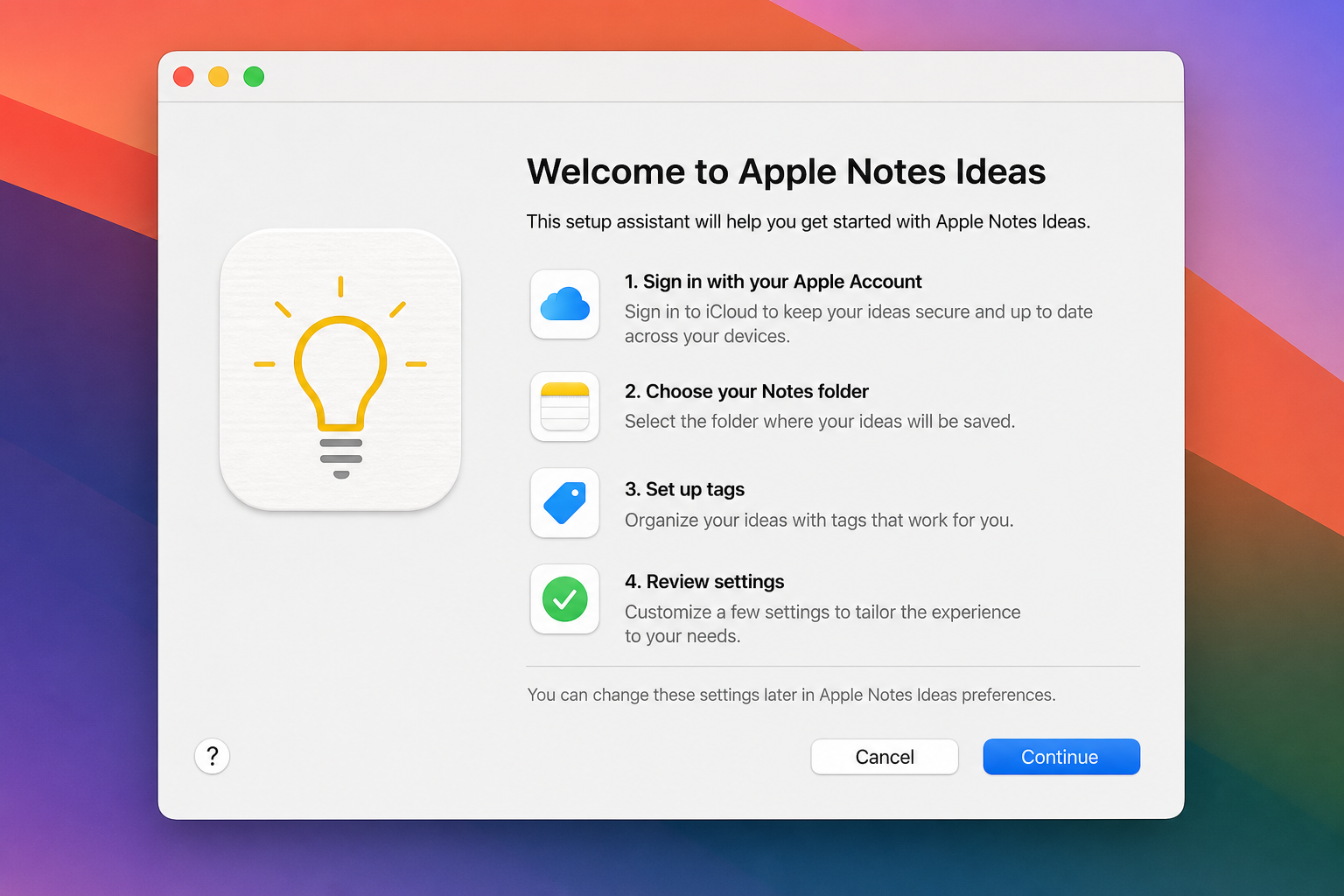
When you open the app (or run setup --gui), a native macOS
guide walks you through every step. Here is exactly what to expect:
Click Continue to start. The wizard explains that it will:
Illustrative mockup of the setup welcome dialog.
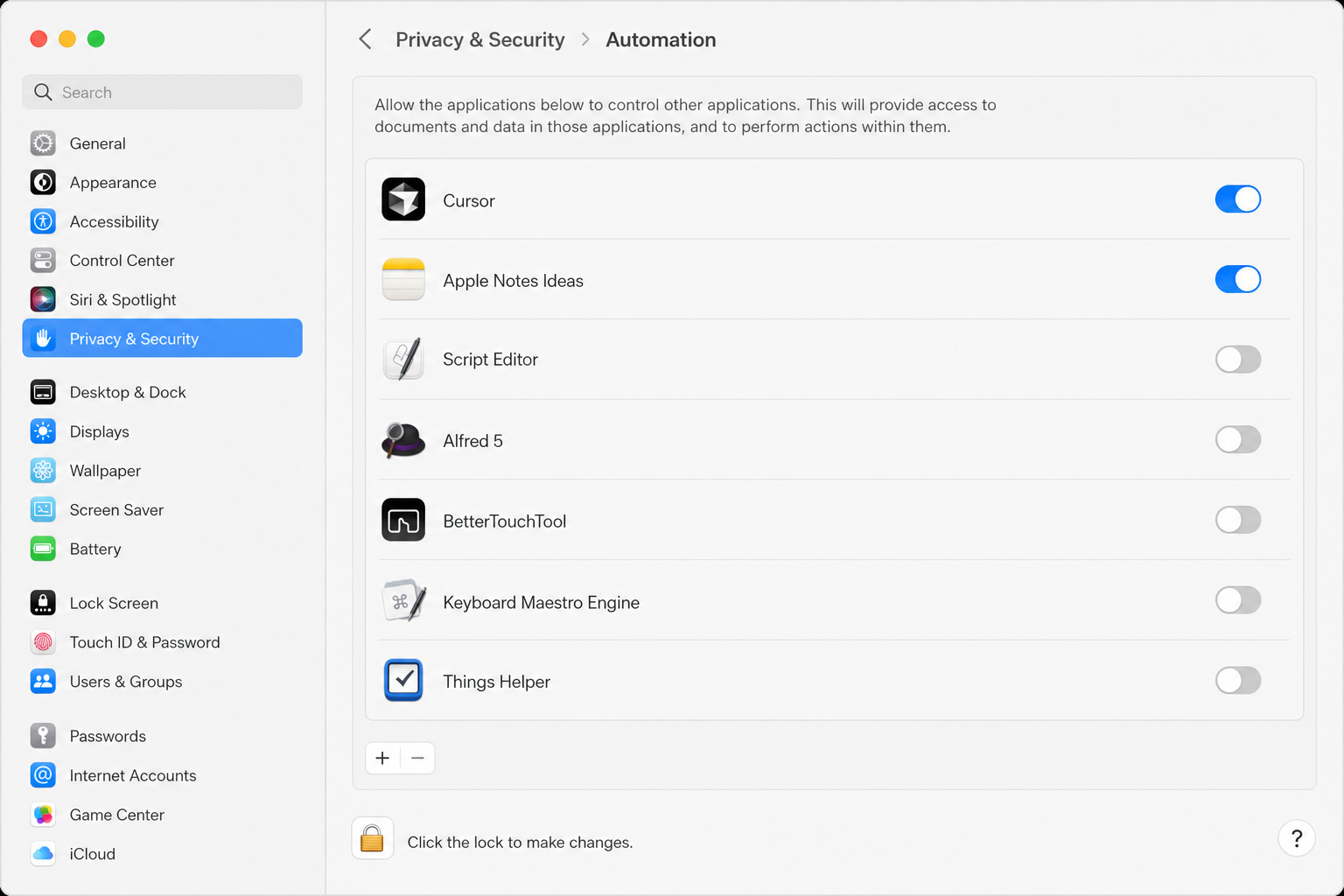
macOS shows an Automation prompt. Click OK and allow this app (or Cursor) to control Notes.
Illustrative mockup of Automation permissions in System Settings.
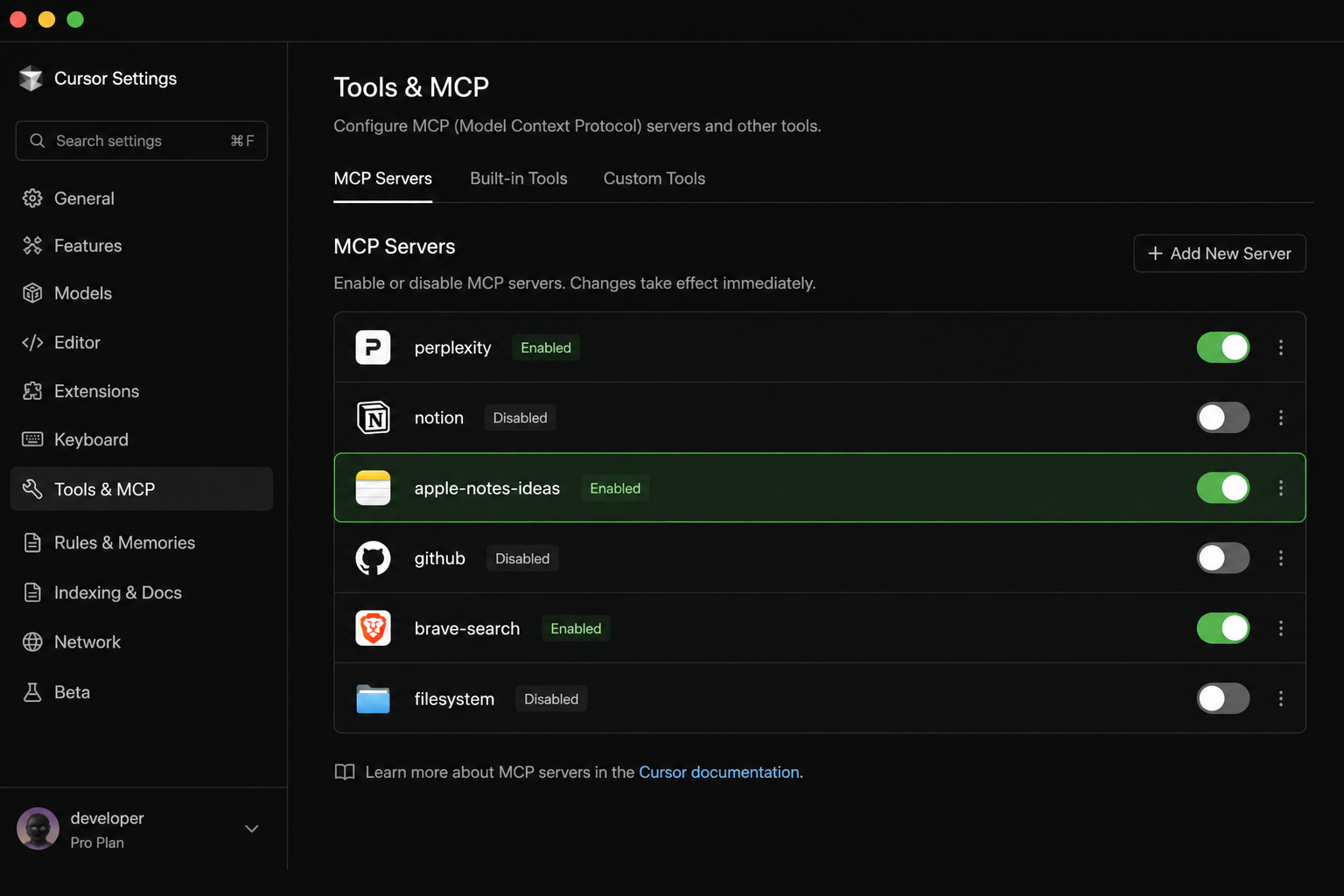
The wizard merges an entry into ~/.cursor/mcp.json:
{
"mcpServers": {
"apple-notes-ideas": {
"type": "stdio",
"command": "/Applications/Apple Notes Ideas.app/Contents/MacOS/mcp-server",
"args": []
}
}
}
It also creates the Apple Notes root folder in Notes.app.
Name your first project folder β or skip and create ideas later in Cursor.
The wizard saves a first-session prompt to:
~/Library/Application Support/Apple Notes Ideas/first-session-prompt.txt
Click Open Cursor to launch Cursor and continue below.
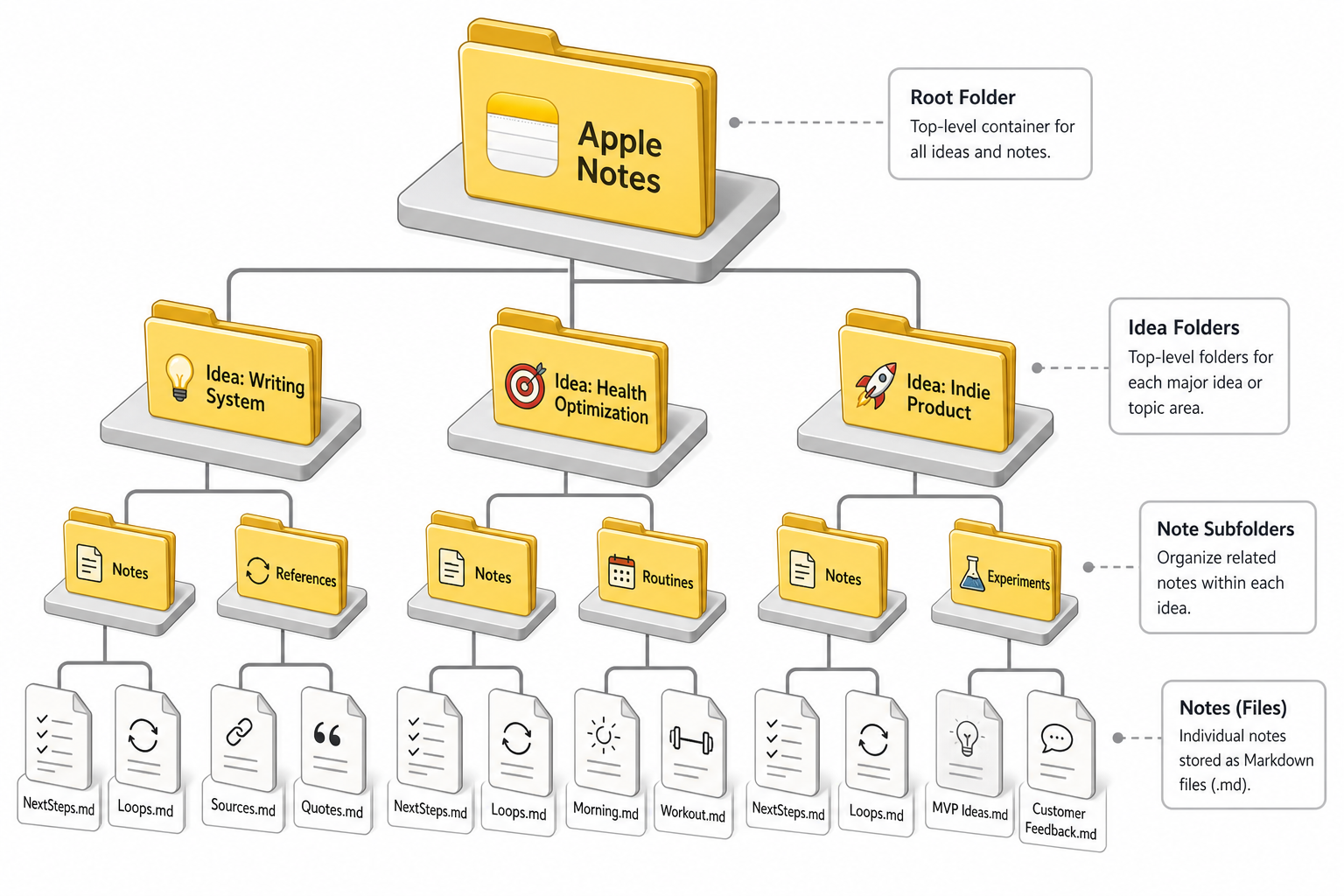
How notes are organized
Every idea gets its own folder. Each note lives in its own subfolder:
Apple Notes/ β root folder
βββ My Startup Idea/ β one subfolder per idea
β βββ NextSteps.md/ β orchestrator plan
β β βββ NextSteps.md
β βββ Research/
β β βββ Research
β βββ Loops/ β loop agent workspace
β βββ weekly-validation/
β βββ Loop Definition.md/
β βββ Loop Run 2025-06-24/
After setup
Illustrative mockup of Cursor MCP settings.
Open the saved prompt file or copy this into a new Cursor chat:
You have the Apple Notes Ideas MCP connected.
1. Call get_workspace_info and explain the folder structure to me.
2. Call setup_root_folder to create the "Apple Notes" root.
3. Ask me what idea I want to capture, then create_idea with that name.
4. Call generate_next_steps with a vision sketch based on our conversation.
5. Read NextSteps.md back to me and ask every open clarifying question one at a time.
6. Update the plan as I answer until status can move from Draft to Ready.
7. When I say "create a loop", use create_loop and explain manual vs scheduled runs.
Ask Cursor in chat:
Call get_setup_status and confirm everything is configured.
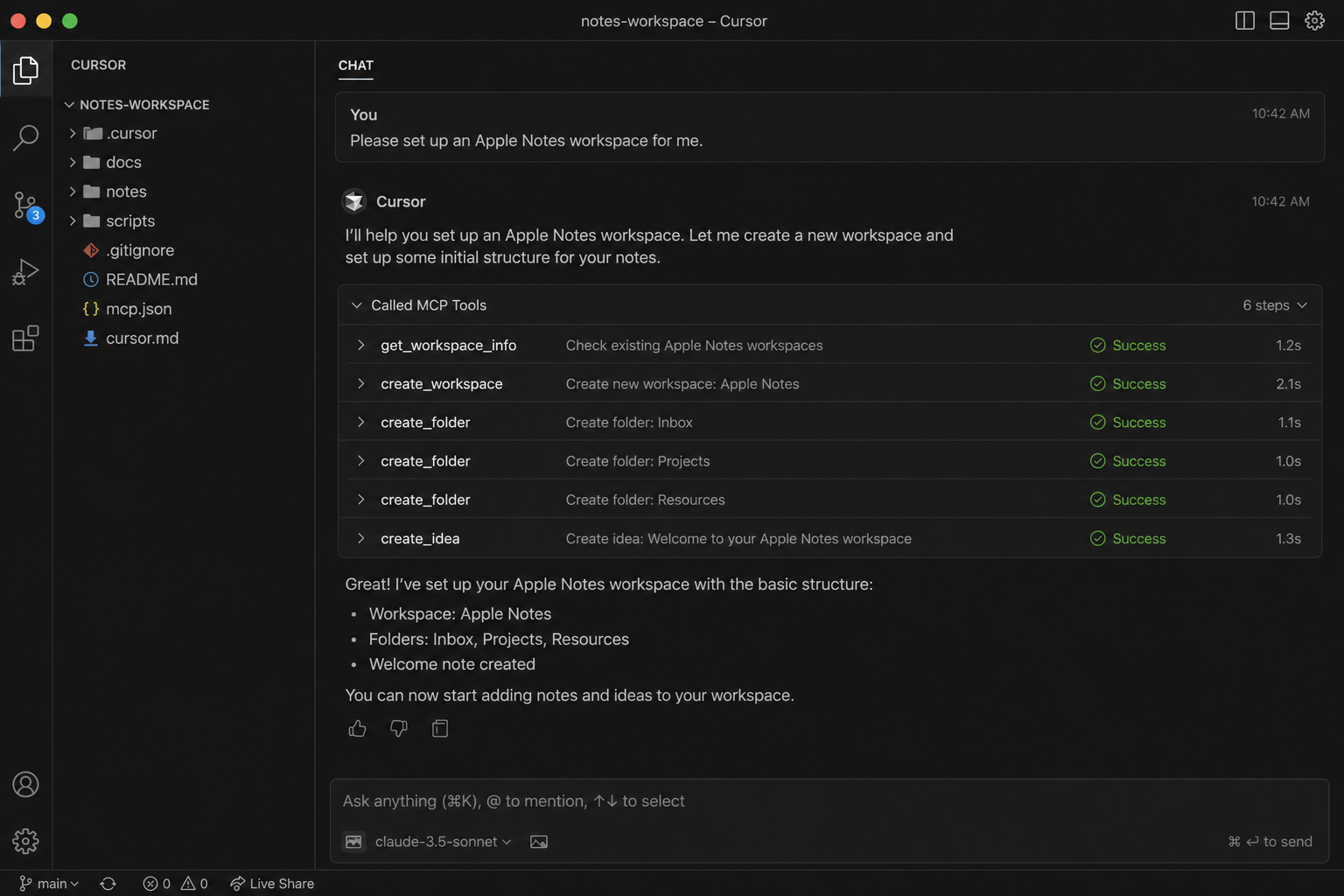
Illustrative mockup of Cursor calling MCP tools for your Notes workspace.
Cursor can now:
AI agents
NextSteps.md for each ideaLoops/run_loopschedule_loop| Tool | What it does |
|---|---|
get_workspace_info | Explain folder structure & agent roles |
get_setup_status | Check if local setup is complete |
setup_root_folder | Create Apple Notes root |
create_idea | New idea subfolder |
generate_next_steps | AI orchestrator plan with open questions |
create_loop / run_loop | Design and execute iteration loops |
get_note / update_note | Read and write note content |
Help
~/.cursor/mcp.json contains apple-notes-ideasapple-notes-ideas-mcp setup --force --guibrew install nodeopen "/Applications/Apple Notes Ideas.app"
# or
npx apple-notes-ideas-mcp setup --gui --force
Download the app, run the 2-minute setup guide, and start capturing ideas with AI orchestration.